


How to download, install, and start reading — even if you do not own a Kindle device
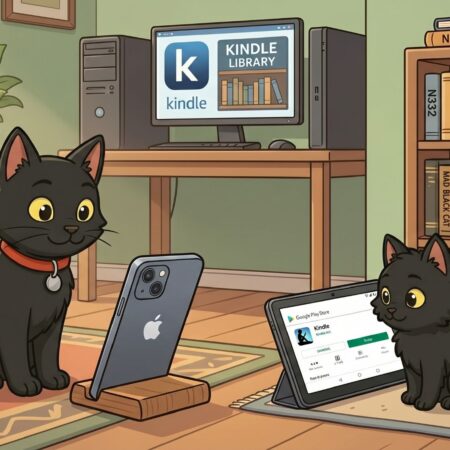
Many people assume that you need a physical Kindle device to read Kindle books. You do not. The reality is much simpler: you can read Kindle books on your phone, tablet, or computer using a free app.
This guide explains everything you need to get started.
What is Kindle?
Kindle is Amazon’s digital reading platform. It includes:
- The Kindle eBook store
- The Kindle reading app
- Optional Kindle e-readers (dedicated devices)
You only need the app to get started.
Is Kindle available on Android and Apple?
Yes — it works on both:
- Android phones and tablets via the Amazon Kindle app
- iPhone and iPad via the Amazon Kindle app
It is also available on computers via a web browser or desktop app.
Step 1: Download the Kindle app
On Android
- Open the Google Play Store
- Search for Kindle
- Install the app called Amazon Kindle
On iPhone or iPad
- Open the Apple App Store
- Search for Kindle
- Install the app called Amazon Kindle
The app is completely free.
Step 2: Sign in
When you open the app:
- Sign in with your Amazon account
- If you do not have one, you can create it quickly within the app
This account is what stores your books.
Your Amazon account works everywhere
One of the most useful things to understand is that your Amazon account is not limited to Kindle.
The same account works across the entire Amazon ecosystem, including:
- Kindle books and the Kindle app
- Online shopping through Amazon
- Subscriptions such as Amazon Prime
- Other Amazon services and devices
This means:
- You only need one login
- Your purchases and downloads stay linked to your account
- Your books automatically sync across devices
For example, you can start reading on your phone and continue later on a tablet without losing your place.
Step 3: Find books
There are two main ways to get books:
Option 1: From within the Kindle app
- Use the search bar
- Type the book title or author, like Mark Nolan
- Tap to download or purchase
Option 2: From the Amazon website
- Search for books on Amazon
- Choose the Kindle version
- Send it to your device
Once downloaded, the book appears instantly in your library.
Step 4: Start reading
Tap any book in your library and begin reading immediately.
You can adjust:
- Text size
- Font style
- Background colour (light or dark mode)
- Screen brightness
It is designed to be simple and comfortable.
Step 5: Understanding Kindle Unlimited
Kindle Unlimited is a subscription service.
- You pay a monthly fee
- You can read thousands of books at no extra cost
- Many independent authors (including educational projects) make their books available through it
If a book is included, you will see a “Read for free” option.
Step 6: Free promotions and offers
Authors can occasionally make books free for a limited time.
This means:
- No subscription required
- No payment needed
- You simply download and keep the book
These promotions are often used for awareness campaigns, education, or launches.
You can do this
Many people miss out on useful content simply because they assume:
- They need a Kindle device
- The process is complicated
- Or it is not available on their phone
None of that is true.
With a simple app download, anyone can access books instantly — including free educational material.
Final thought
Kindle is not really about devices. It is about access.
If you can use a smartphone, you can use Kindle. And once it is installed, it opens the door to reading anywhere — whether that is for learning, awareness campaigns, or simply enjoying a good book.

Other Articles